Exciting News: Ventral AI Is Joining Voxel!

Learn More

Release Notes

Stay informed on Voxel’s latest product updates.

Filter
Button Text
Notifications
Button Text
Heatmaps
Button Text
Visibility
Button Text
Navigation
Button Text
Time Windows
Button Text
Security
Button Text
New Release
Button Text
Operational Intelligence Platform
Clear Filters
October 29, 2026

Downloads That Tell the Whole Story

New Release
Operational Intelligence Platform
Product

This week, we are improving what you download from Voxel. Speeding videos and heatmap images now carry the context needed to better understand them, even when you share them with people who don’t use Voxel.

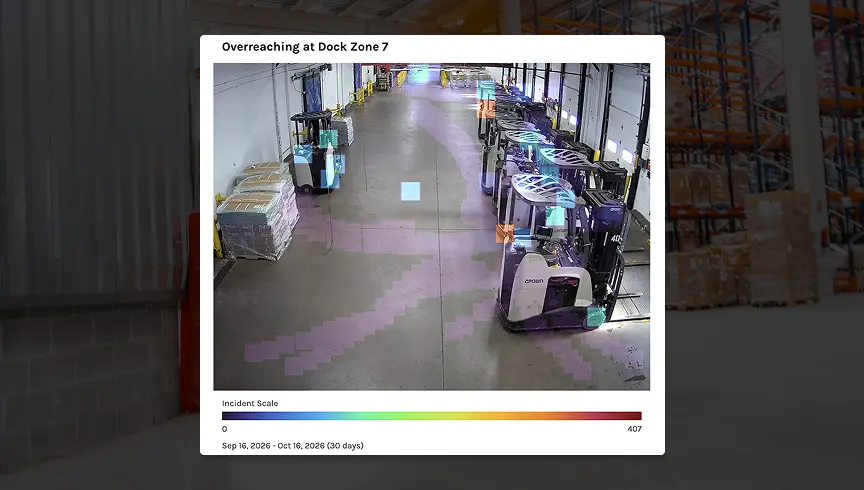
Until now, downloaded speeding videos didn’t show the measured speed or the configured speed limit at the time of the incident. Downloaded heatmap images didn’t include the color scale, title, or date range. Teams often had to take screenshots or explain the missing details by hand when sharing evidence with drivers, contractors, or leadership. Now, that information is built into the file itself.
Three Ways This Update Improves Your Experience

  1. Share speeding videos that speak for themselves. When you export a speeding incident video, it now includes a band at the bottom with the average speed, the configured speed limit, the date and time in the site’s local time, the camera, and the site.
  2. See the speed limit next to the average speed. The incident details panel on Speeding incidents now shows a Speed Limit line beside Average Speed. It shows the limit set at the time of the incident, so later changes to speed limit settings won’t change past incidents.
  3. Download heatmaps that are ready for reports. “Download image” now saves a file with the heatmap, its incident scale, its title (incident type and camera), and its date range. Anyone viewing it in a report or presentation can tell what the colors mean and what period it covers.

‍

October 22, 2026

Get Alerts When Your Team Can Act

New Release
Product
Notifications

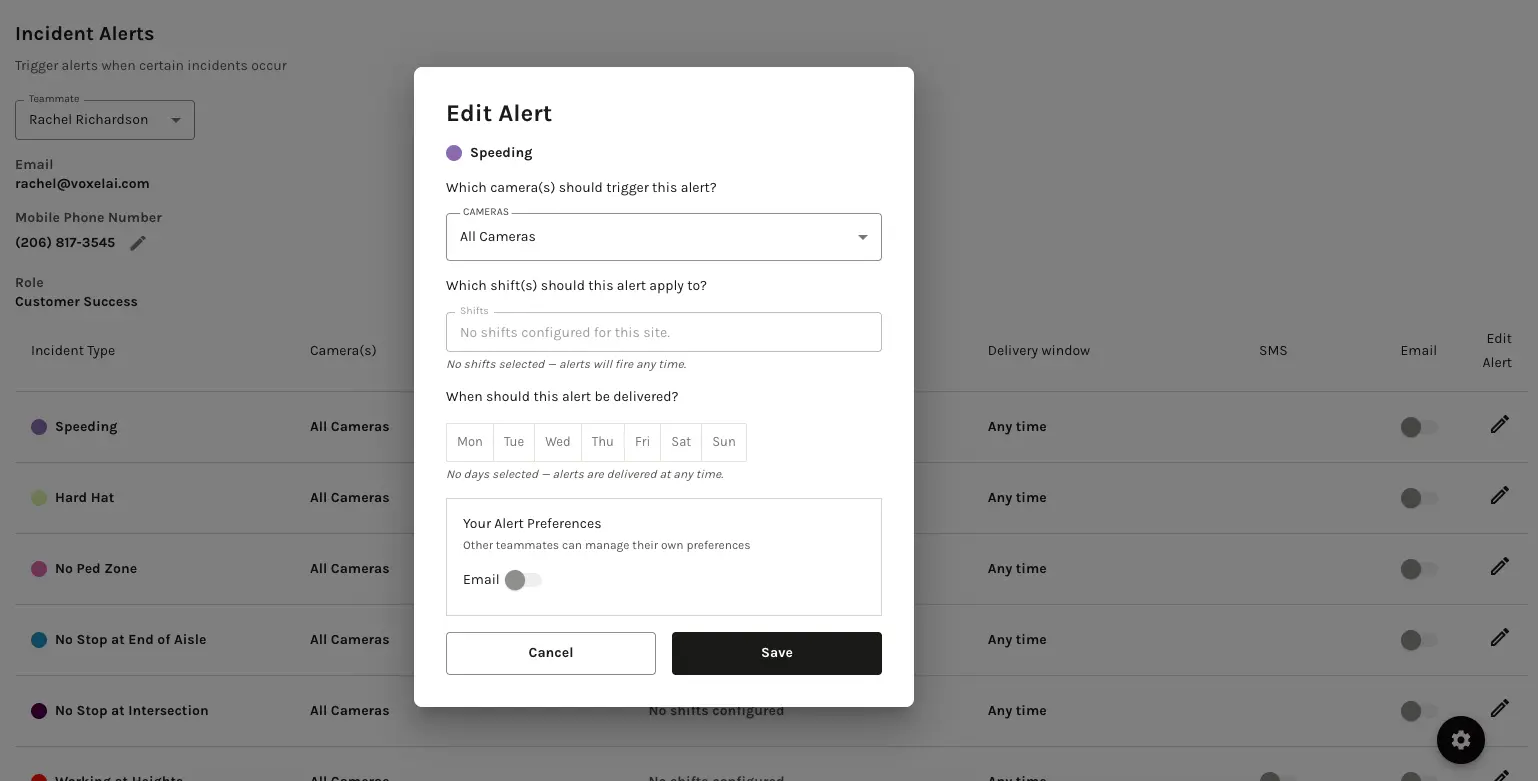
This week, you can now limit incident alerts to the hours your team can respond, instead of receiving them around the clock. Delivery Windows cut off-hours noise so every alert you get is one your team can act on.
Three Ways This Update Improves Your Experience

  1. Set windows that fit each team. Delivery Windows can be set by site, incident type, channel (Email or SMS), and recipient, so two people at the same site can have different windows for the same incident type.
  2. Choose the days and hours. Each window has a start and end time for the days of the week you select, and follows your site's local time zone.
  3. Cut the after-hours noise. Alerts that happen outside a window aren't sent and aren't delivered later. To set one up, share your site, incident types, channels, recipients, days, and hours with your CSM.
October 19, 2026

Every Board Now Leads With What Matters Most

New Release
Product
Boards

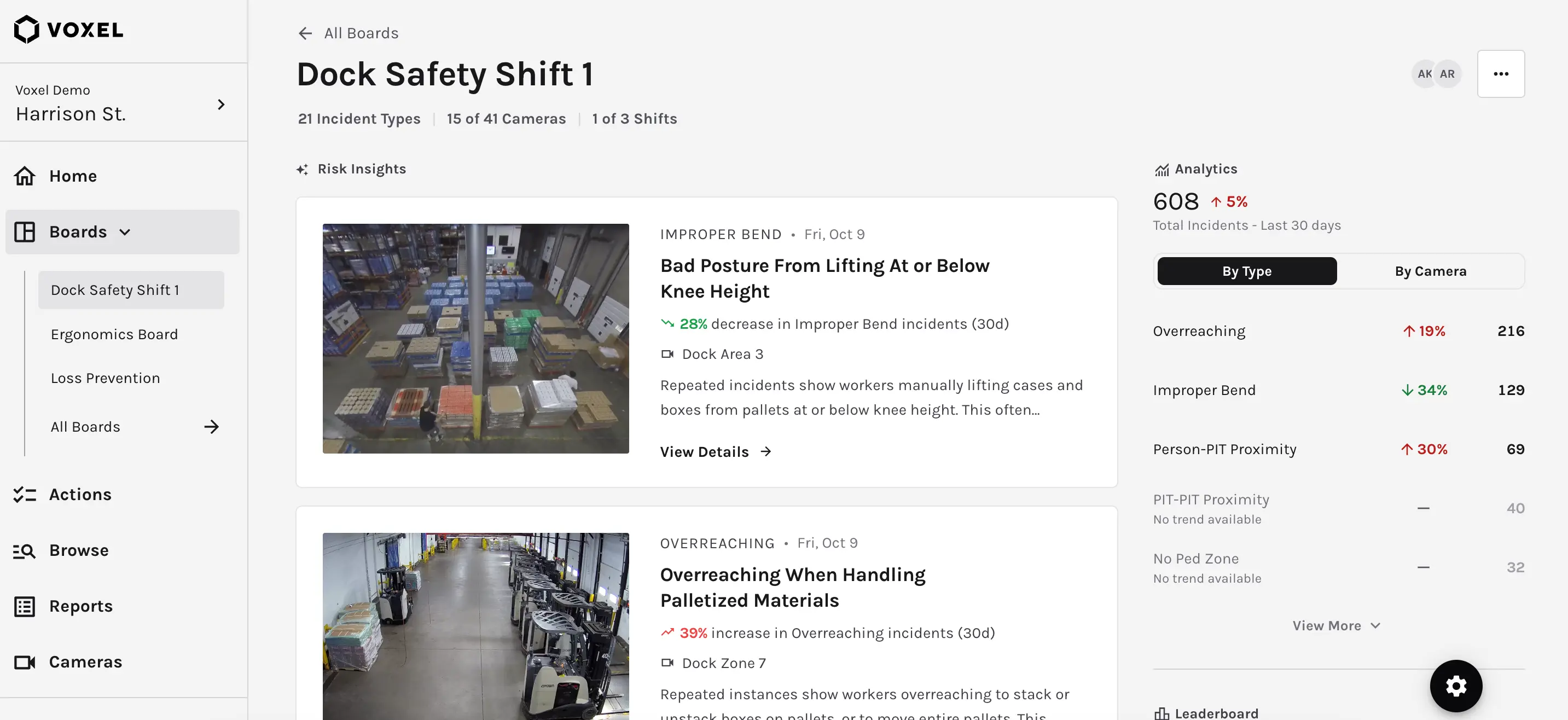
This week, Boards gets the same Insight-First experience as the redesigned Home page. Each Board now opens with Risk Insights for the area it covers, so your frontline teams see the most important findings first instead of interpreting charts on their own.
Three Ways This Update Improves Your Experience

  1. See the right insights for every area. Each Board now leads with Risk Insights scoped to that Board's incident types, cameras, and shifts.
  2. Keep your analytics close by. Board analytics move to a condensed view alongside your insights, so trends are still a glance away.
  3. No setup required. Existing Boards moved to the new layout automatically. Your Board settings for incident types, cameras, and shifts stay as they are, with no changes to filters or data.
October 15, 2026

Your Latest Heatmaps, Organized the Way You Think About Your Site

New Release
Product
Heatmaps

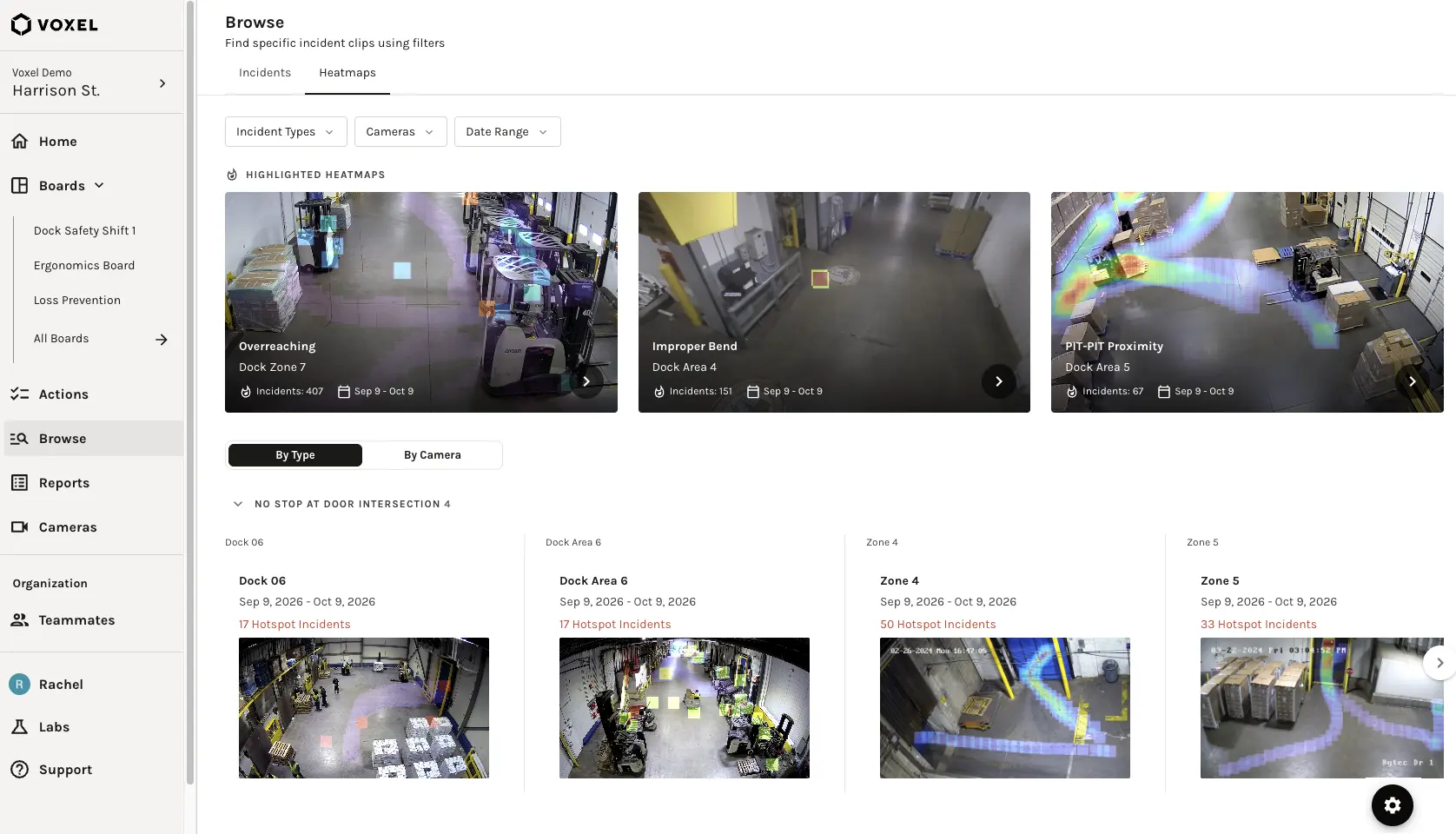
This week, the Heatmaps tab in Browse gets easier to scan and filter. Narrow by time window, find any camera quickly, and see only your most current data.
Three Ways This Update Improves Your Experience

  1. Focus on the time window you care about. A new 30/60/90 Days filter works alongside Incident Type and Camera, and your selections stay in the page link so you can come back to the same view.
  2. Find any camera fast. Within each Incident Type, heatmaps are grouped under camera names in alphabetical order, from 30 to 60 to 90 days.
  3. Scan large sites with ease. Each row shows how many heatmaps it holds and can be collapsed, and a By Incident Type / By Camera toggle lets you switch views, just like on Home.
October 8, 2026

Share Incidents on Your Timeline

New Release
Product
Visibility

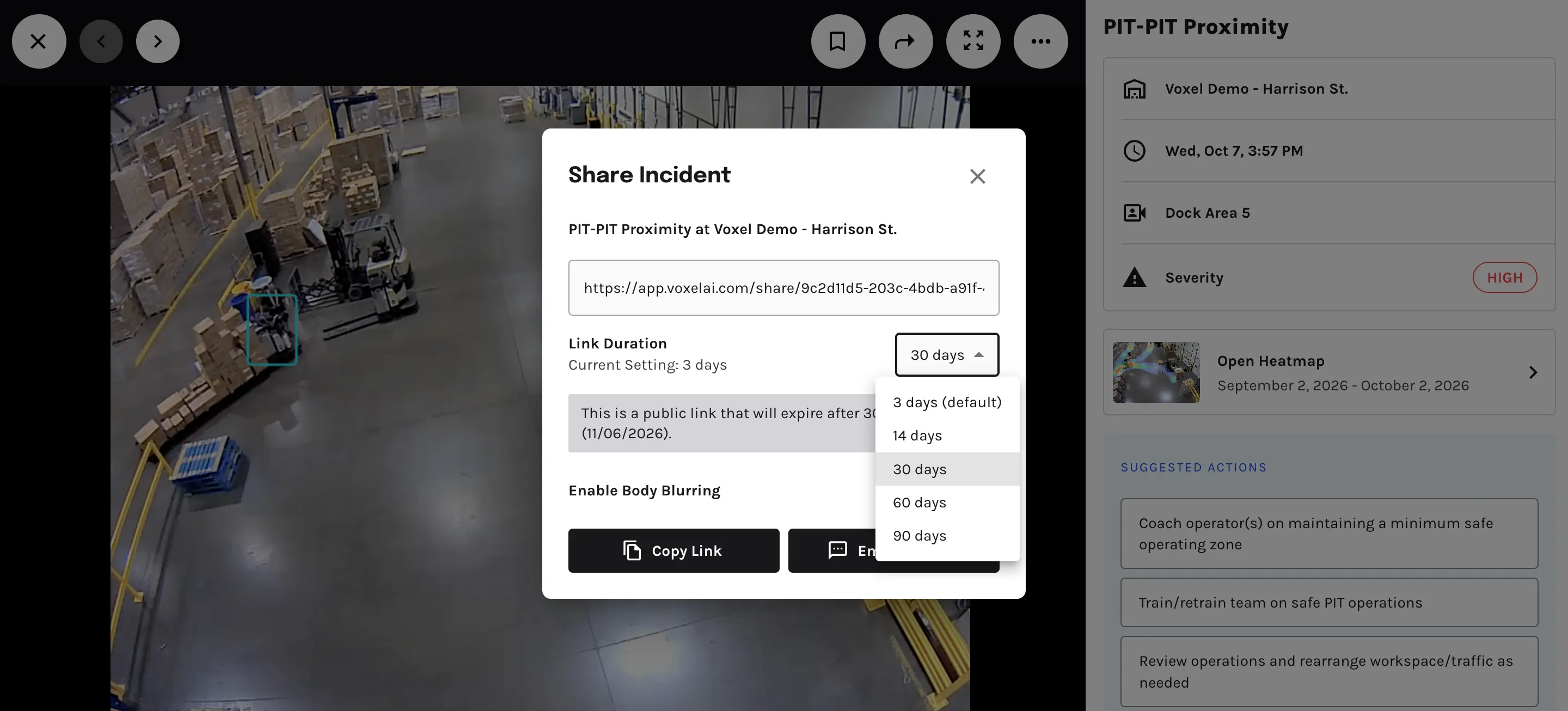
This week, Admins and Organization Executives can now choose how long an incident Share Link stays active. Instead of a fixed expiration, you can pick the window that fits each situation, right from the Share dialog.
Three Ways This Update Improves Your Experience

  1. Pick the right window for every link. Choose 3, 14, 30, 60, or 90 days each time you share an incident.
  2. Start from your organization's default. The picker is pre-set to your organization's standard duration, and any change applies only to that link.
  3. No request needed. Keep links open longer for investigations or outside partners, or shorter for sensitive incidents, without contacting Voxel.
October 1, 2026

Take Your Actions Data Anywhere

New Release
Product
Actions

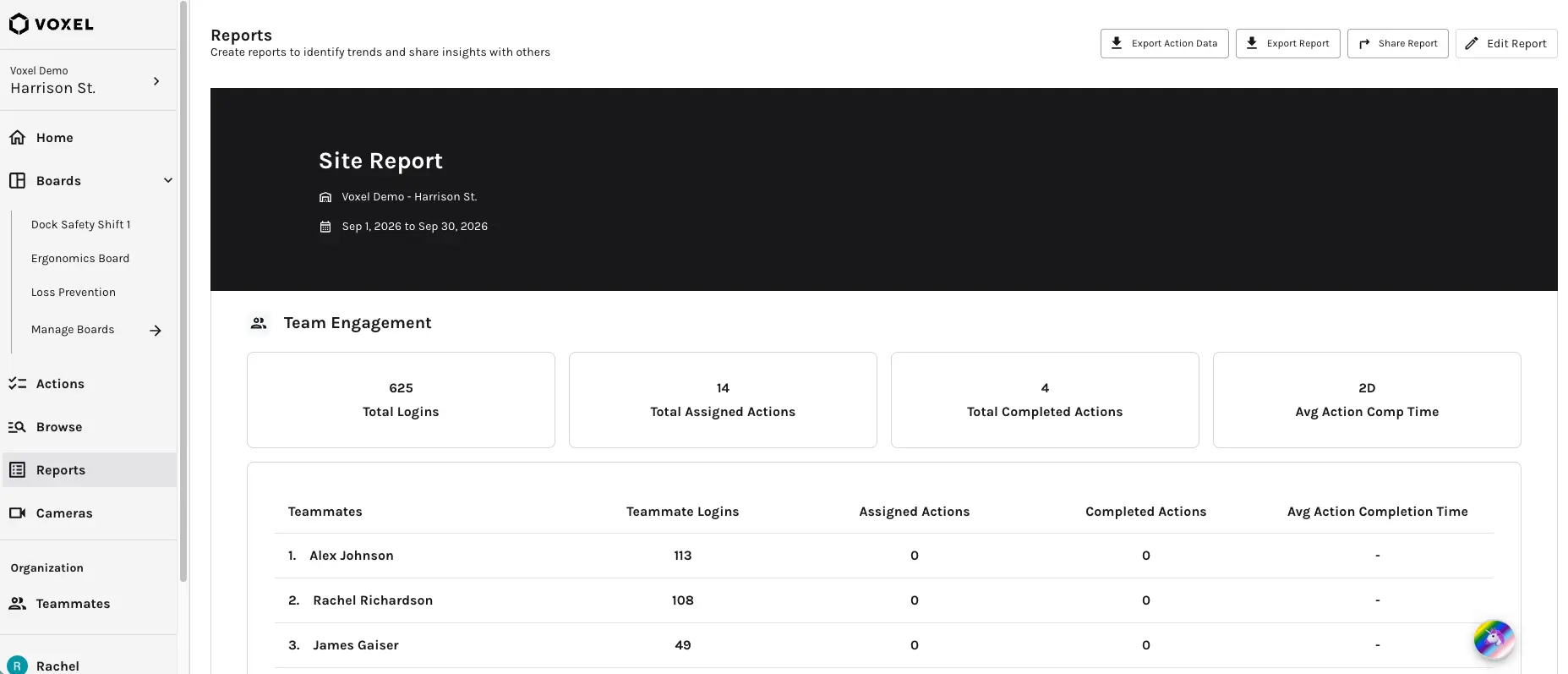
This week, Site Reports adds a CSV export for Actions, so you can analyze your team's follow-through in your own tools. We've also made creating an Action more reliable, wherever you start it.
Three Ways These Updates Improve Your Experience

  1. Download every Action behind your report. A new Export Actions CSV control gives you one row per Action for the site, across every status: open, in progress, completed, and declined.
  2. Export exactly what you're looking at. The CSV follows your report's date range and any Incident Type, Camera, or Shift filters, and includes every matching Action, not just what's on screen.
  3. Create Actions with confidence. Creating an Action now shows a clear success or error message from Incident Details, Boards, and Risk Insights. If something goes wrong, your input is saved so you can try again.
September 24, 2026

Know Where to Focus the Moment You Log In

New Release
Product
Operational Intelligence Platform

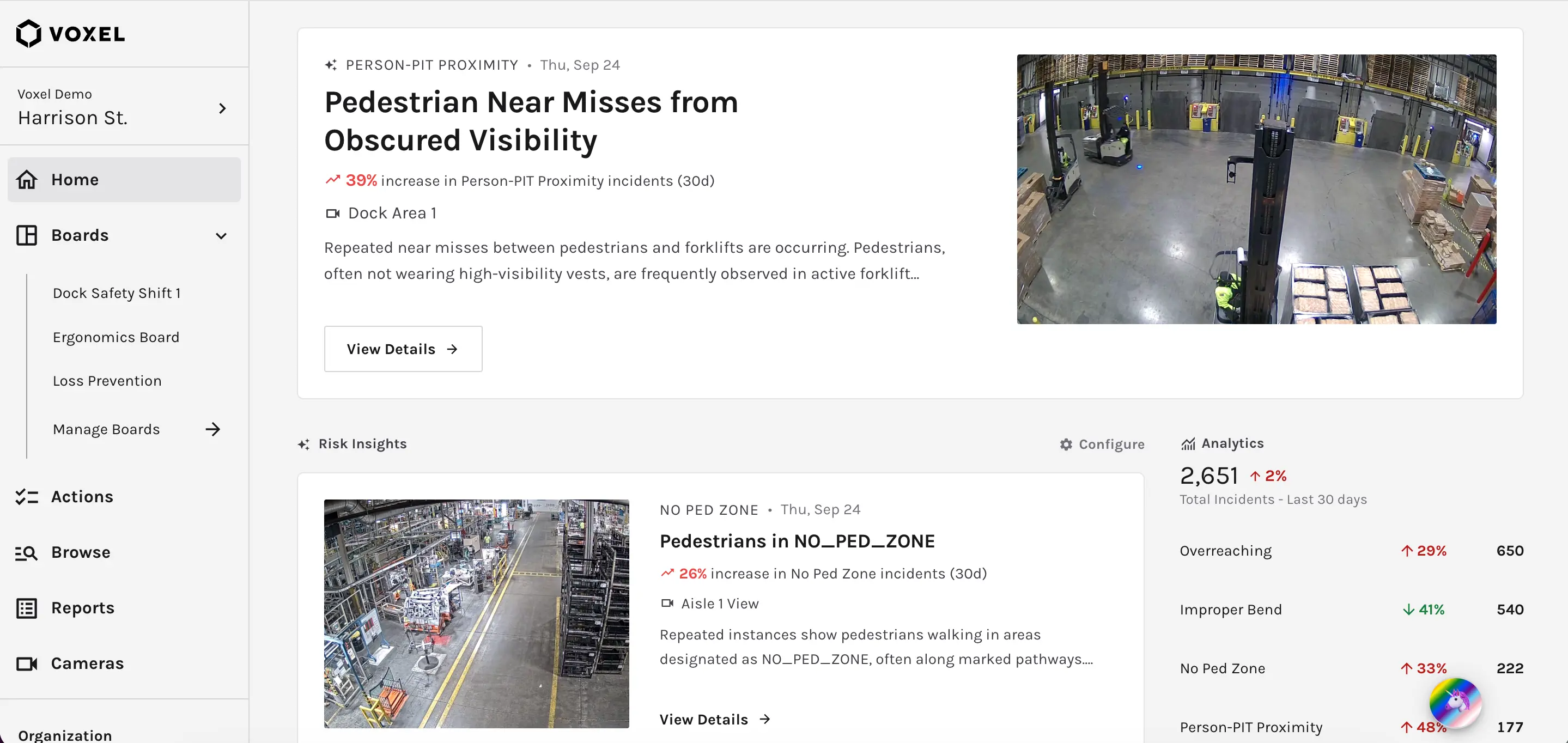
This week, Voxel introduces a redesigned Homepage that leads with Risk Insights. In seconds, you can see where the biggest safety gaps are at your site and what to do about them, with all the analytics you rely on still one scroll away.
Three Ways This Update Improves Your Experience

  1. See more Risk Insights, front and center. Home now shows up to four Risk Insights a day instead of one, each covering a different camera and incident type, with the most severe featured first.
  2. Keep every view you rely on. Incident cards, 30-day trends, Heatmaps, the Teammate leaderboard, and Recent Activity are all still on Home, just next to your Risk Insights.
  3. Start your day with what matters. The Daily Summary Email leads with Risk Insights too, so the most important findings reach you before you open the platform.

‍

September 17, 2026

Find Any Past Update in Seconds

New Release
Product
Actions

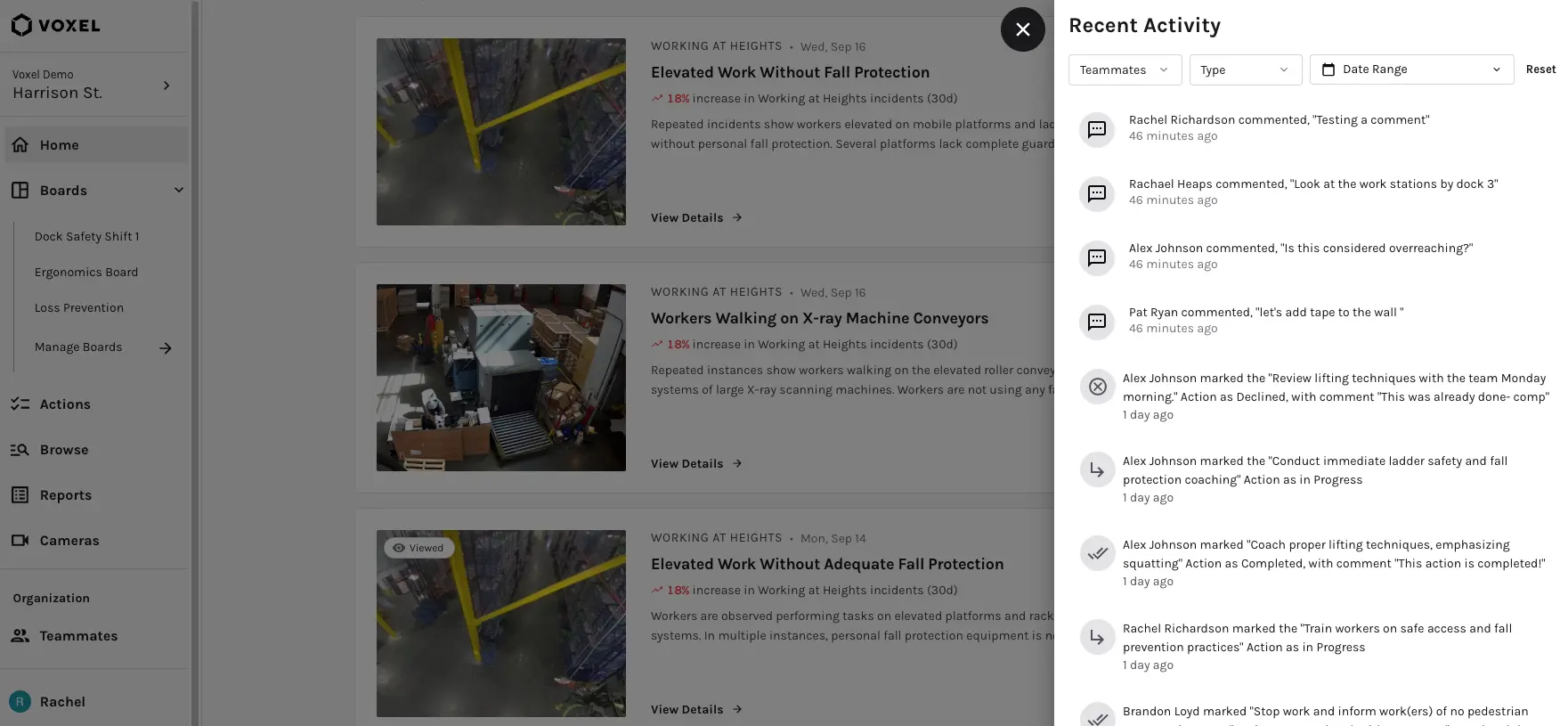
This week, Recent Activity gets filters, so you can jump straight to the update you're looking for instead of scrolling the full feed. Narrow the list by date, teammate, or activity type, and combine them to zero in.
Three Ways This Update Improves Your Experience

  1. Filter by Date, Teammate, or Type. The 'View All' Recent Activity list now includes three filters, including activity types like Commented, Action Created, Assigned, Completed, and Reopened.
  2. Combine filters to get precise. Pick several options in one filter to see any of them, and stack filters to narrow results further.
  3. Start fresh with one click. A single Reset control clears all three filters at once.
September 10, 2026

Compare Every Shift. Spot Which One Needs Support

New Release
Product
Shifts

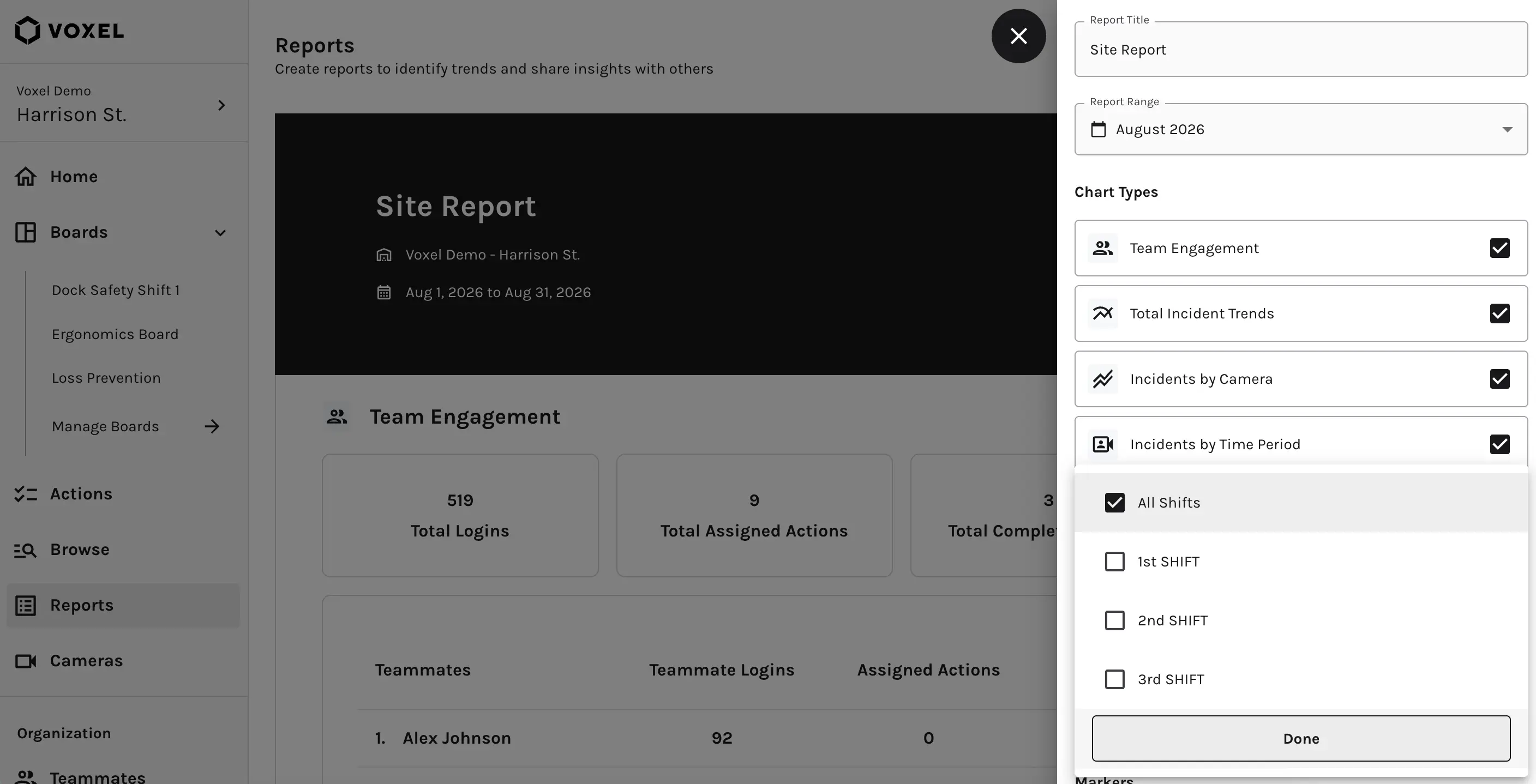
This week, Site Reports adds a Shift filter, making it easy to see how each shift is performing. If your site runs multiple shifts, you can now check whether changes are improving outcomes across all of them, or whether one is falling behind.
Two Ways This Update Improves Your Experience

  1. Filter your Site Report by Shift. The Data Filters panel now includes a Shift filter alongside Incident Type and Camera. Select one or more shifts to see only incidents from those time windows.
  2. Skip the manual comparisons. Shift options match the shifts set up for your site, so you can compare shift-level performance in one report instead of piecing it together by hand.
September 3, 2026

Move Through Incident Videos Without Missing a Beat

New Release
Product
Navigation

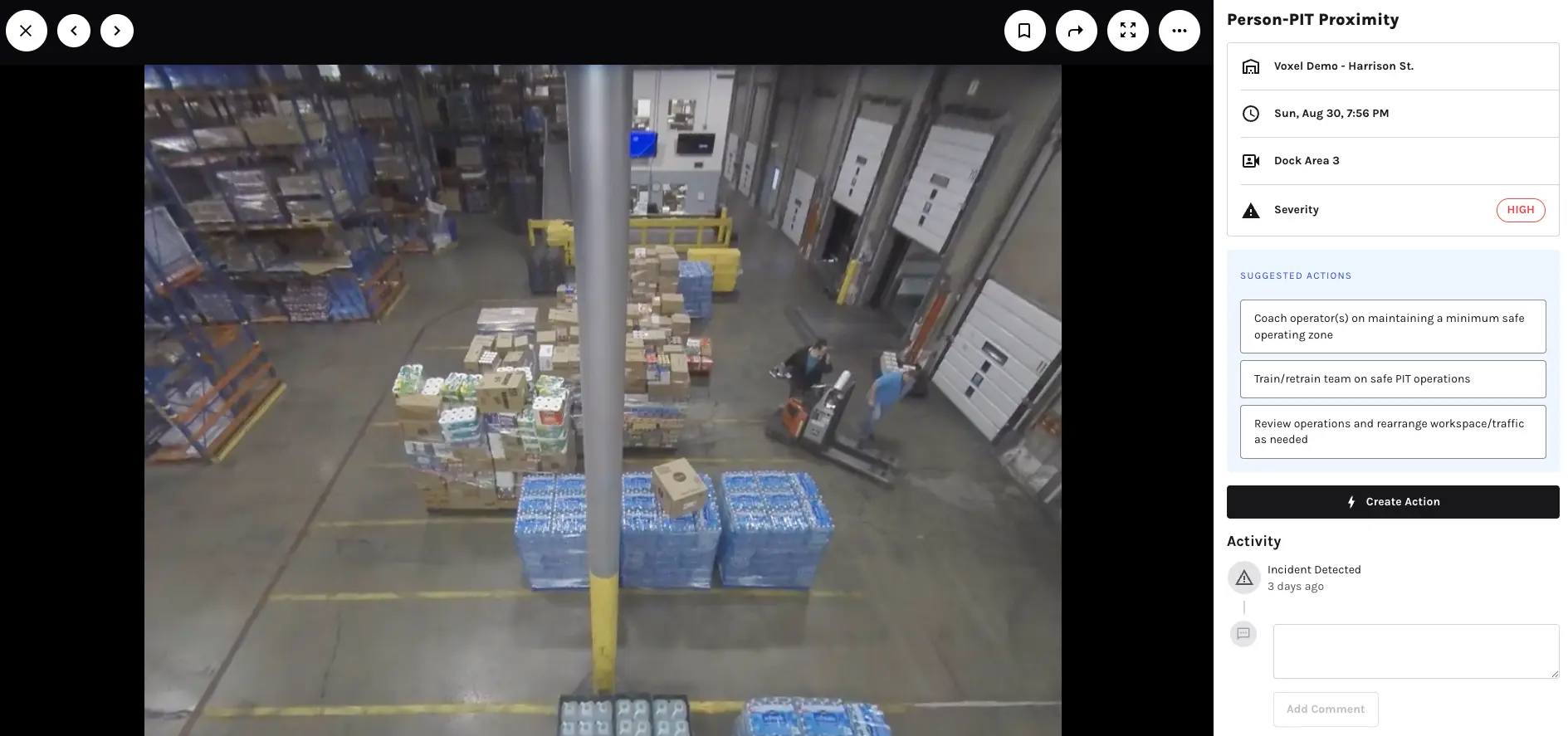
This week, reviewing incident videos gets faster. You can now move from one video to the next with arrows, instead of closing each video and clicking into the next one.
Two Ways This Update Improves Your Experience

  1. Review videos back to back. Use the forward and back arrows, or your keyboard's arrow keys, to cycle through incident videos without leaving the viewer.
  2. Works wherever you review incidents. Arrow navigation is available across incident lists in the platform, including Data Panels, Heatmaps, and Browse.
August 27, 2026

From 'Something's Off' to 'Here's What Happened' in One Click

New Release
Product
Time Windows

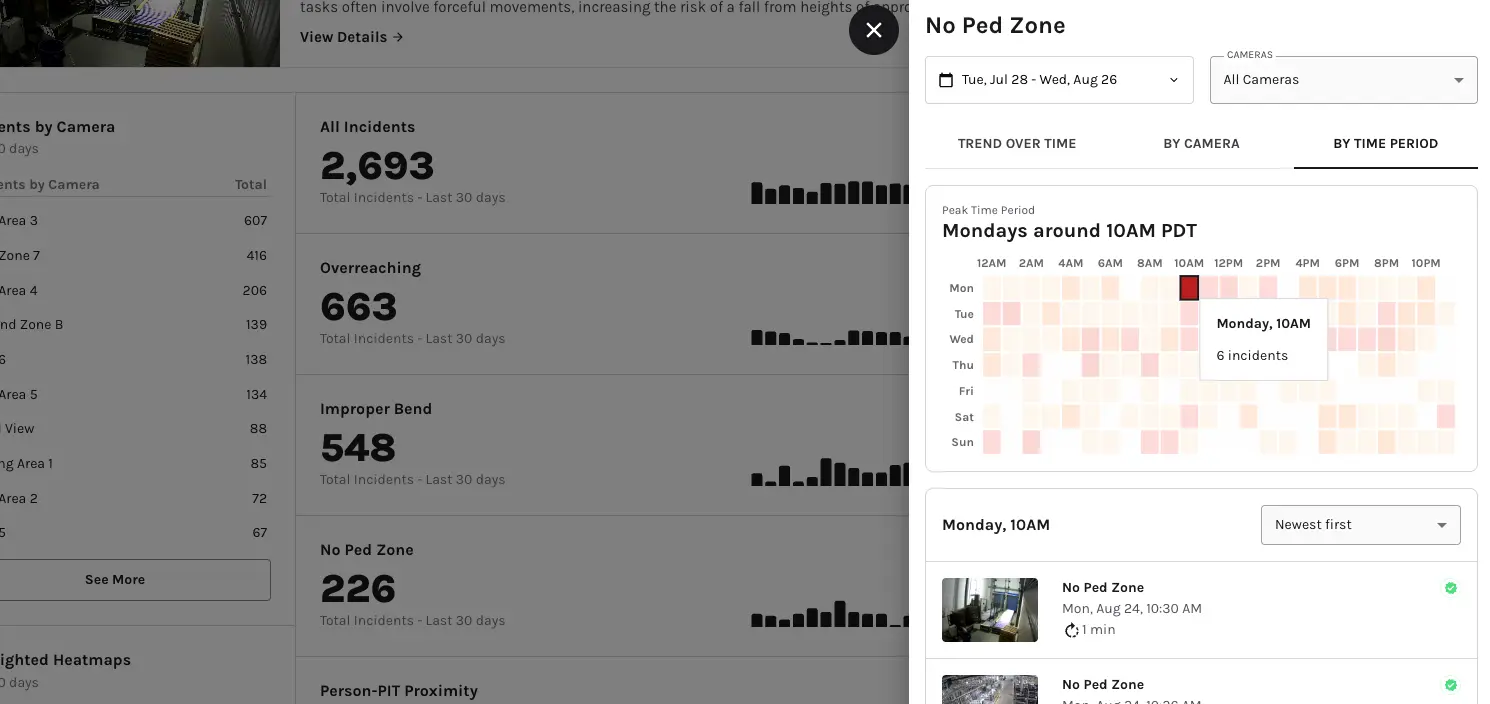
This week, the "By Time Period" heatmap makes it easier to dig into when and why incidents cluster, and exported videos now show what Voxel detected. You can click straight into busy time windows, and downloaded clips carry the same visual context you see in the platform.
Two Ways These Updates Improve Your Experience

  1. Explore your highest-frequency time windows. The 'By Time Period' heatmap on Incidents is now clickable. Select any day and hour to filter the Incidents list to exactly what happened in that window, no manual cross-referencing needed.
  2. Share videos with the full picture. Exported incident videos now include annotations, so anyone watching a downloaded clip can see what Voxel detected.
August 14, 2026

Never Miss a Due Date. See Every Open Action, Sooner

New Release
Product
Actions

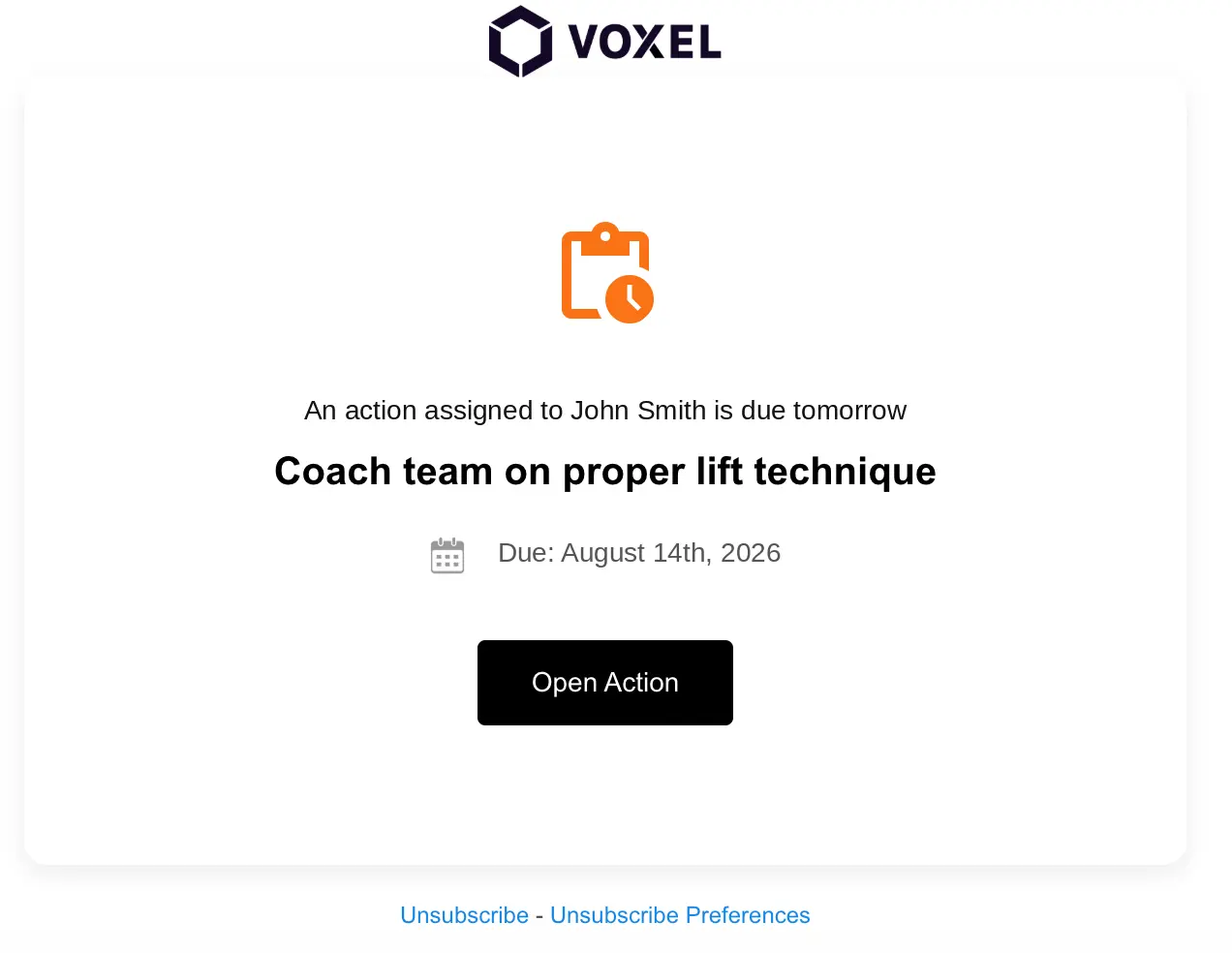
This week, Actions gets three updates that make it easier to stay on top of open work. Actions now automatically sends due-date reminders, makes it faster to filter down a long Actions list, and gives leaders a full view of open Actions, not just completed ones.
Three Ways These Updates Improve Your Experience

  1. See due dates before they slip. Actions now sends the Assignee, Assigner, and Subscribers an automatic reminder one day before an Action is due, and another if it's still open a day past the due date.
  2. Find what matters faster. You can now filter the Actions page by Shift or by Assignee.
  3. Track open Actions across sites, not just completed ones. Executive Hub now shows Assigned Action totals by Site and by Teammate, in addition to existing Completed Action totals.
August 6, 2026

Know the Moment Someone Enters a Restricted Area

New Release
Product
Security

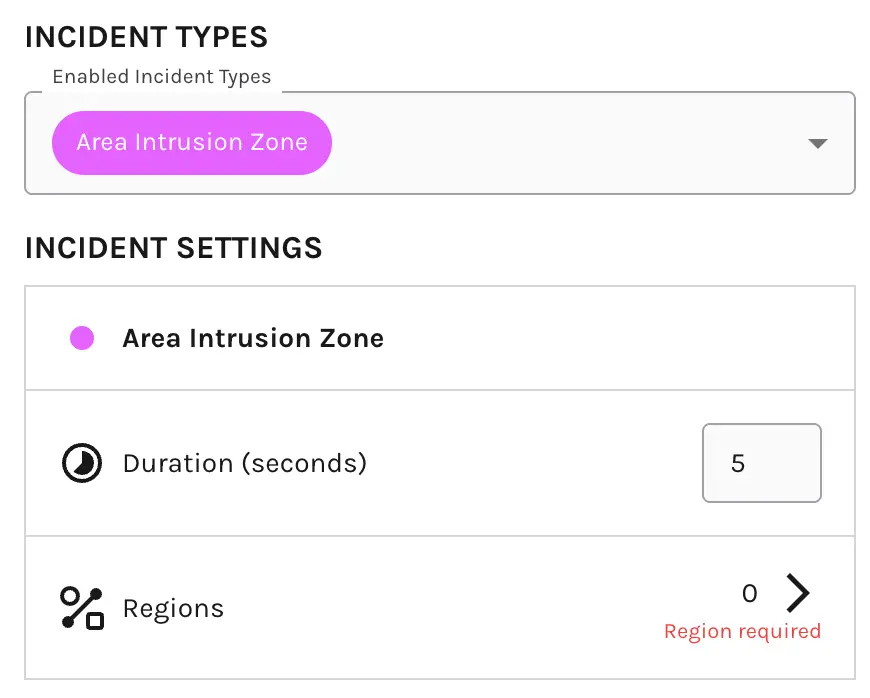
This week, Voxel introduces Area Intrusion Zone, our first use case built for security alongside safety. Area Intrusion Zone allows you to mark off restricted areas and get alerted when someone enters and stays, so your team can respond while it's happening, not after the fact.

Three Ways This Update Improves Your Experience

  1. Protect your most sensitive areas. Draw zones around loading docks, chemical storage, secure perimeters, and other restricted spaces, and Voxel flags anyone who enters and stays past a set duration (5 seconds by default).
  2. Respond in real time. Area Intrusion events default to High severity and can trigger an SMS alert to the people you choose at your site.
  3. Know what to do next. Each incident includes Suggested Actions, like investigating the zone, notifying a supervisor, or contacting emergency services.

Let’s Build a Safer,

More Efficient Operation.